VLC media player is a portable, free and open-source, cross-platform media player and streaming media server written by the VideoLAN project. VLC media player supports many audio and video compression methods and file formats, including DVD-Video, video CD and streaming protocols. There is no doubt it is a nice enjoyment to watch 3D movies with VLC. If you want to watch any 3D movies with VLC amytime anywhere amoothly, just keep reading.
 But the only problem is that VLC supports Red and Cyan 3D viewing option only. No worry, we will tell you two methods.
Here offer you two methods of watching 3D movies with VLC:
Method 1: How To Watch 3D Movies with VLC Media Player(Red and Cyan 3D)
Now follow the full guides to watch 3D movies/videos with your VLC media player.
Download VLC firstly.
1. First of all, collect a SBS (Side-By-Side) 3D movie.
2. Play the 3D movie using your VLC media player.
3. After that, click on Tools and then select the Effects And Filters option from the drop-down menu.
But the only problem is that VLC supports Red and Cyan 3D viewing option only. No worry, we will tell you two methods.
Here offer you two methods of watching 3D movies with VLC:
Method 1: How To Watch 3D Movies with VLC Media Player(Red and Cyan 3D)
Now follow the full guides to watch 3D movies/videos with your VLC media player.
Download VLC firstly.
1. First of all, collect a SBS (Side-By-Side) 3D movie.
2. Play the 3D movie using your VLC media player.
3. After that, click on Tools and then select the Effects And Filters option from the drop-down menu.
 You can read How to Make YouTube Videos Load Faster ~ Over Slow Internet.
4.Now click on Video Effects tab and in this section click on Advanced tab.
You can read How to Make YouTube Videos Load Faster ~ Over Slow Internet.
4.Now click on Video Effects tab and in this section click on Advanced tab.
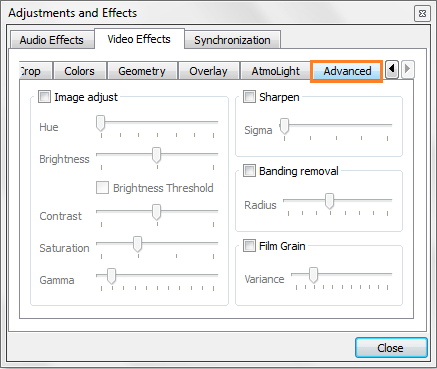 5.Then, in the Advanced tab, put a check mark on Anaglyph 3D option.
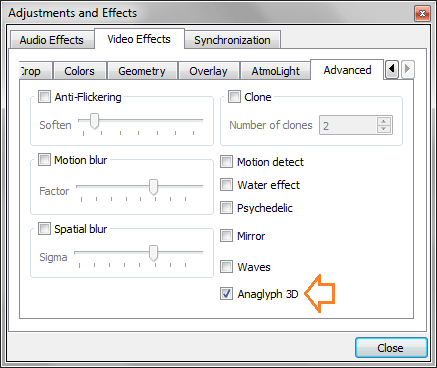 6.Done! No more steps to follow. Now, just put your Red/Cyan 3D glasses on and enjoy your 3D movie.
OK, now you have known how to watch Anaglyph 3D movies on PC with VLC media player. Actually there are some other methods to watch any 3D movies on your PC but using VLC is the cool one. According to many tests, you can try iFastime Video Converter Ultimate. You can play both 2D and 3D movies(SBS, Top-Bottom, Anaglyph included) on it easily, and it's available for iOS and Android mobile devices as well as on computers.
Method 2. Use iFatime Video Converter Ultimate to Convert various 3D Movies to VLC or other devices supported files
With the good iFastime Video Converter Ultimate, you can easily play any 3D movies on any devices and players at anytime anywhere, surely VLC included. Follow me to learn the easiest way.
Download and launch the top 3D video converter:
6.Done! No more steps to follow. Now, just put your Red/Cyan 3D glasses on and enjoy your 3D movie.
OK, now you have known how to watch Anaglyph 3D movies on PC with VLC media player. Actually there are some other methods to watch any 3D movies on your PC but using VLC is the cool one. According to many tests, you can try iFastime Video Converter Ultimate. You can play both 2D and 3D movies(SBS, Top-Bottom, Anaglyph included) on it easily, and it's available for iOS and Android mobile devices as well as on computers.
Method 2. Use iFatime Video Converter Ultimate to Convert various 3D Movies to VLC or other devices supported files
With the good iFastime Video Converter Ultimate, you can easily play any 3D movies on any devices and players at anytime anywhere, surely VLC included. Follow me to learn the easiest way.
Download and launch the top 3D video converter:

 Other Download:
1. Load your 3D files with 'Add video' or 'Add from folder', then make the suitable choice for your original 3D movies to VLC compatible video format, such like 'MP4 Anaglyph 3D Video (*.mp4)', which is more suitable for VLC.
Other Download:
1. Load your 3D files with 'Add video' or 'Add from folder', then make the suitable choice for your original 3D movies to VLC compatible video format, such like 'MP4 Anaglyph 3D Video (*.mp4)', which is more suitable for VLC.
 2. Then hit “Start conversion”, and after conversion finished you can freely import 3D movies to VLC and play them with VLC anytime. Just have a try.
The top video converter plays standard definition video, HD video, 4K video, DVD/Blu-ray and audio files with ease. You can also play subtitles on your video using ASS, SSA, or SRT. Besides VLC, the powerful video player and video converter can convert any video/audio formats (DVD/Blu-ray included) to any formats you want to fit your various devices including smartphone, tvs, players, editing software, and more.
Have more questions about how to open 3D Movies with VLC, please feel free to contact us>> or leave a message at Facebook.
More Topics:
2. Then hit “Start conversion”, and after conversion finished you can freely import 3D movies to VLC and play them with VLC anytime. Just have a try.
The top video converter plays standard definition video, HD video, 4K video, DVD/Blu-ray and audio files with ease. You can also play subtitles on your video using ASS, SSA, or SRT. Besides VLC, the powerful video player and video converter can convert any video/audio formats (DVD/Blu-ray included) to any formats you want to fit your various devices including smartphone, tvs, players, editing software, and more.
Have more questions about how to open 3D Movies with VLC, please feel free to contact us>> or leave a message at Facebook.
More Topics:
Samsung Gear VR was born to bring imagination to the reality. Gear VR is the first mobile virtual reality headset, has lit up the imagination of both smartphone and VR enthusiasts. Samsung and Oculus have made it easy to import and watch your own 3D movies with Gear VR in virtual cinema mode. There is no doubt it can bring you an amazing 3D movie experience at anytime anywhere.
But from some google forums, there are many 3D movies playback issues for Gear VR, you may wonder how to watch 3D movies on VR headsets like Gear VR, VR One, etc. Take it easy, this article will help to solve.
Gear VR support 3D MP4, 3D MKV, so you just need to convert your 3D movies to these format. With the help of iFastime Video Converter Ultimate, you can easily transcode 3D movies to side-by-side, Red/Blue and Top/Bottom 3D MP4, 3D MKV, 3D MOV. Besides, you can read more review to help you. If you're using a Mac, please turn to iFastime Video Converter Ultimate for Mac, which enables you to convert all 3D movies on Samsung Gear VR on Mac OS X 10.11 El Capitan, Mac OS X 10.10 Yosemite, 10.9 Mavericks, 10.8 Mountain Lion, 10.7 Lion, 10.6 Snow Leopard, 10.5 Leopard.
Hot search: ISO to Gear VR, 3D YIFY to Gear VR, Blu-ray to Gear VR, MKV to Gear VR, DVD to VR One
Now, download this professional App:
Other Download:
How to Convert 3D Movies to Samsung Gear VR for playing?
Step 1. Add 3D moveis to the program
For video file, click the "Add video" button, browse to computer hard drive and import 3D video into this app. For discs, Insert your 3D/2D Blu-ray or standard DVD movie to disc drive, and click "Load from disc" button to load Blu-ray or DVD.
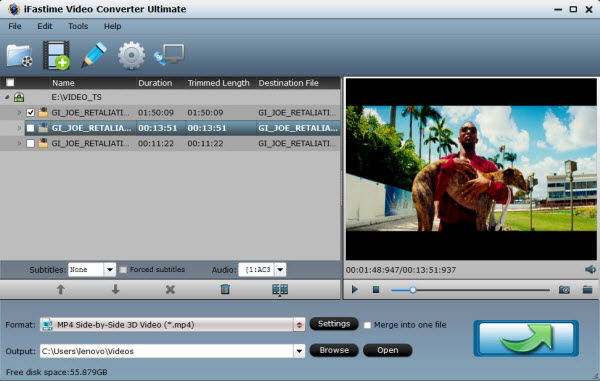 Step 2. Select outputformat
Tap on "Format" bar and find "3D Video", there are a lot of format options for you. "MP4 Side-by-Side 3D Video (*.mp4)" is recommended for Samsung Gear VR.
Step 2. Select outputformat
Tap on "Format" bar and find "3D Video", there are a lot of format options for you. "MP4 Side-by-Side 3D Video (*.mp4)" is recommended for Samsung Gear VR.
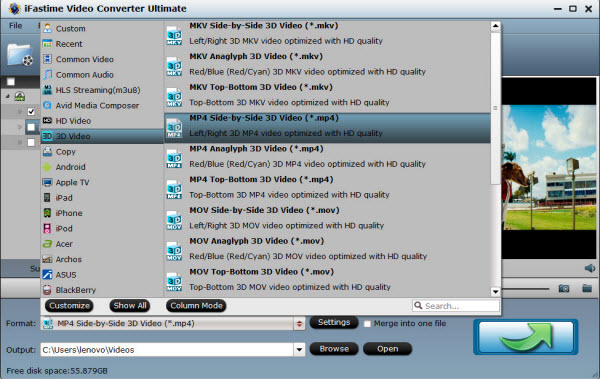 Step 3. Adjust settings
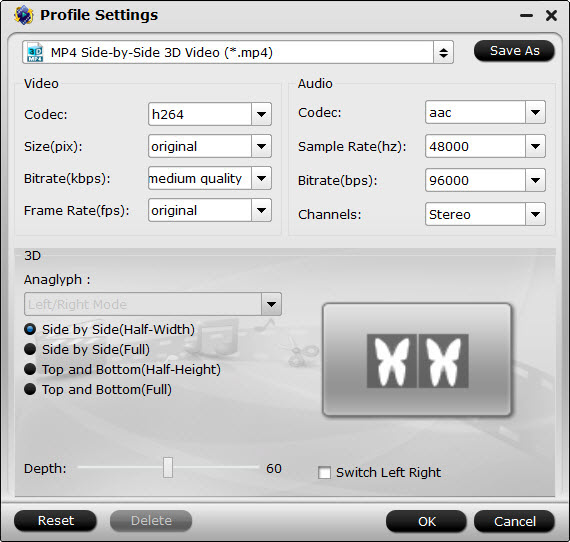
Click the “Settings” icon, you can modify the video/audio parameters. Movies in 720p resolution are best for watching in the Gear VR. Note that 1920x1080 compressed side-by-side 3D should be resampled to 1920x540 resolution full side-by-side resolution.
Step 3. Adjust settings
Click the “Settings” icon, you can modify the video/audio parameters. Movies in 720p resolution are best for watching in the Gear VR. Note that 1920x1080 compressed side-by-side 3D should be resampled to 1920x540 resolution full side-by-side resolution.
 Step 4. Start converting
Click the big green arrow button, 3D movie to SBS 3D MP4 conversion begins. After the conversion, place your video files into the folder named "My Videos" on your MicroSD card for Samsung devices.
To view your SBS 3D video files on your Gear VR, follow these steps:
1.On your MicroSD card file directory, navigate to Oculus > Movies > Your Movies
2.Create a new folder within "Your Movies" and label it "3D"
3. Import or move your side-by-side 3D videos into your newly created "3D" folder
4. Once you have created your 3D content folder and imported compatible video files, insert your MicroSD card into your Galaxy Note 4 (if it isn't already), dock the phone in your Gear VR, and don the virtual reality headset.
Then:
1.Navigate to Oculus Cinema from the main menu
2.Navigate to "My Videos" from the Oculus Cinema content library menu
3.Select the 3D video you wish to view (if you followed the above steps it should have a "3D" label in the upper righthand corner)
4.Choose the cinema mode to begin playback
Now you can enjoy your 3D movies on Gear VR at ease, it is so easy to get 3D time at home.
Have more questions about how to play 3D movie on Gear VR, please feel free to contact us>>
More Topics:
Step 4. Start converting
Click the big green arrow button, 3D movie to SBS 3D MP4 conversion begins. After the conversion, place your video files into the folder named "My Videos" on your MicroSD card for Samsung devices.
To view your SBS 3D video files on your Gear VR, follow these steps:
1.On your MicroSD card file directory, navigate to Oculus > Movies > Your Movies
2.Create a new folder within "Your Movies" and label it "3D"
3. Import or move your side-by-side 3D videos into your newly created "3D" folder
4. Once you have created your 3D content folder and imported compatible video files, insert your MicroSD card into your Galaxy Note 4 (if it isn't already), dock the phone in your Gear VR, and don the virtual reality headset.
Then:
1.Navigate to Oculus Cinema from the main menu
2.Navigate to "My Videos" from the Oculus Cinema content library menu
3.Select the 3D video you wish to view (if you followed the above steps it should have a "3D" label in the upper righthand corner)
4.Choose the cinema mode to begin playback
Now you can enjoy your 3D movies on Gear VR at ease, it is so easy to get 3D time at home.
Have more questions about how to play 3D movie on Gear VR, please feel free to contact us>>
More Topics:
Today, with the development of the science and technology, the age of 3D has come. Once the preserve of Hollywood studios and Japanese TV makers, 3D is now heading for your home at a price you can afford, so a lot of people like to watch 3D movies at home for meeting with more requirements. Of course, you can play 3D movies on 3D meida player or 3D device like Samsung Gear VR, ZEISS VR One at home. However, most of the movie file is still 2D format, so you will worry about how to change 2D videos to more popular 3D(especially 3D AVI) videos on various 3D media players. Take it easy, next we will provide the solution, keep reading.
Maybe you have searched different answers from google for this problem, but no better method. Speaking here, I have to introduce you to a very simple way, that is to convert 2D video to 3D AVI video with a professioinal converter. iFastime Video Converter Ultimate must be a great helper with its powerful 2D to 3D conversion function offering super fast conversion speed. With it, you can also convert 2D/3D resources to 3D movies in 3D AVI, 3D MP4, 3D MOV, 3D WMV and 3D MKV format to watch on 3D devices with Side by Side, Red/Blue and Top/Bottom 3D effects. In addition, you can convert various format video such as DVD, Blu-ray, 4K and HD video to play on Galaxy Note 5, Nexus, iPhone 6S, iPad Air/iPad Mini, iPod, Zune, Archos, iRiver, PS4, Xbox 360, Xbox One and others. (Tips: You can read review to learn more iFastime Video Converter Ultimate features)
Now free download the best 2D to 3D AVI Converter. It is quite easy for you to launch and run this program just follow the software installation suggestion.
Other Download:
How to Convert 2D video to 3D AVI with iFastime Video Converter Ultimate?
Step 1. Load your 2D video files.
Launch the best 2D to 3D Video Converter. Click the button "Add video" to add 2D MP4 video files to it. If necessary, you can double click the each file to have a preview.
 Step 2. Select 3D AVI output format
Click "Format" and select "AVI Side-by-Side 3D Video (*.avi)" from "3D Video" category as the output format. Then set the output folder by clicking "Browse" icon as you need.
Step 2. Select 3D AVI output format
Click "Format" and select "AVI Side-by-Side 3D Video (*.avi)" from "3D Video" category as the output format. Then set the output folder by clicking "Browse" icon as you need.
 Tip: Click Settings to adjust the parameters like video codec, video bitrate, video frame rate, audio sample rate, audio channel. 1920x1080 compressed side-by-side 3D should be resampled to 1920x540 resolution full side-by-side resolution.
 Step 3. Save 2D video to 3D AVI video.
Click the the gerrn arrow button at the bottom right corner; it will make 3D AVI video from 2D MP4 on Mac immediately. After the short 2D to 3D movie conversion, you can get the output file effortlessly.
Just have a try to enjoy created 3D videos on your 3D TV or some other 3D supported multimedia devices at home with your family, that must be a totally different experience, it will impress you!
Have more questions about how to create 3D AVI from 2D videos, please feel free to contact us>>
More Topics:
Step 3. Save 2D video to 3D AVI video.
Click the the gerrn arrow button at the bottom right corner; it will make 3D AVI video from 2D MP4 on Mac immediately. After the short 2D to 3D movie conversion, you can get the output file effortlessly.
Just have a try to enjoy created 3D videos on your 3D TV or some other 3D supported multimedia devices at home with your family, that must be a totally different experience, it will impress you!
Have more questions about how to create 3D AVI from 2D videos, please feel free to contact us>>
More Topics:
